Last updated: July 2026
TL;DR
Digitizing an insurance claims process isn't about replacing paper forms with online forms. It's about creating an end-to-end digital customer journey that guides policyholders through reporting a claim, collecting the right information, validating data, generating documents, capturing signatures, and automatically routing everything to your core insurance systems.
With EasySend, insurers can build digital claims Journeys that connect customers, brokers, adjusters, and internal teams in one workflow. Instead of relying on PDFs, emails, and manual data entry, every interaction happens in a single guided experience that integrates with your existing claims management and policy administration systems. Learn how to digitize an insurance claims process step by step.
Why digitizing insurance claims matters
Claims are one of the most important moments in the customer relationship. When someone files a claim, they expect the process to be simple, transparent, and fast.
Unfortunately, many insurers still rely on disconnected processes that involve:
- Downloading and completing PDFs
- Sending documents by email
- Multiple phone calls
- Manual data entry into several systems
- Chasing missing information
- Recreating documents
- Switching between multiple applications
These manual steps increase operational costs, slow claim resolution, and create unnecessary friction for both customers and employees.
Instead of digitizing one task at a time, insurers should digitize the entire customer interaction—from First Notice of Loss (FNOL) through settlement. This means treating claims as an end-to-end digital customer journey, rather than a collection of disconnected digital tasks.
Step 1: Map your current claims process
Before building a digital workflow, document how claims move through your organization today.
Identify every customer touchpoint, including:
- First Notice of Loss (FNOL)
- Document collection
- Coverage verification
- Adjuster review
- Internal approvals
- Settlement
- Payment authorization
- Claim closure
Then identify where delays occur.
Ask questions such as:
- Where do customers abandon the process?
- Which information is entered more than once?
- Which documents are requested repeatedly?
- Where do employees rely on email or spreadsheets?
- Which approvals are handled manually?
This exercise helps define which parts of the process should be automated first.
Step 2: Build a digital claims Journey
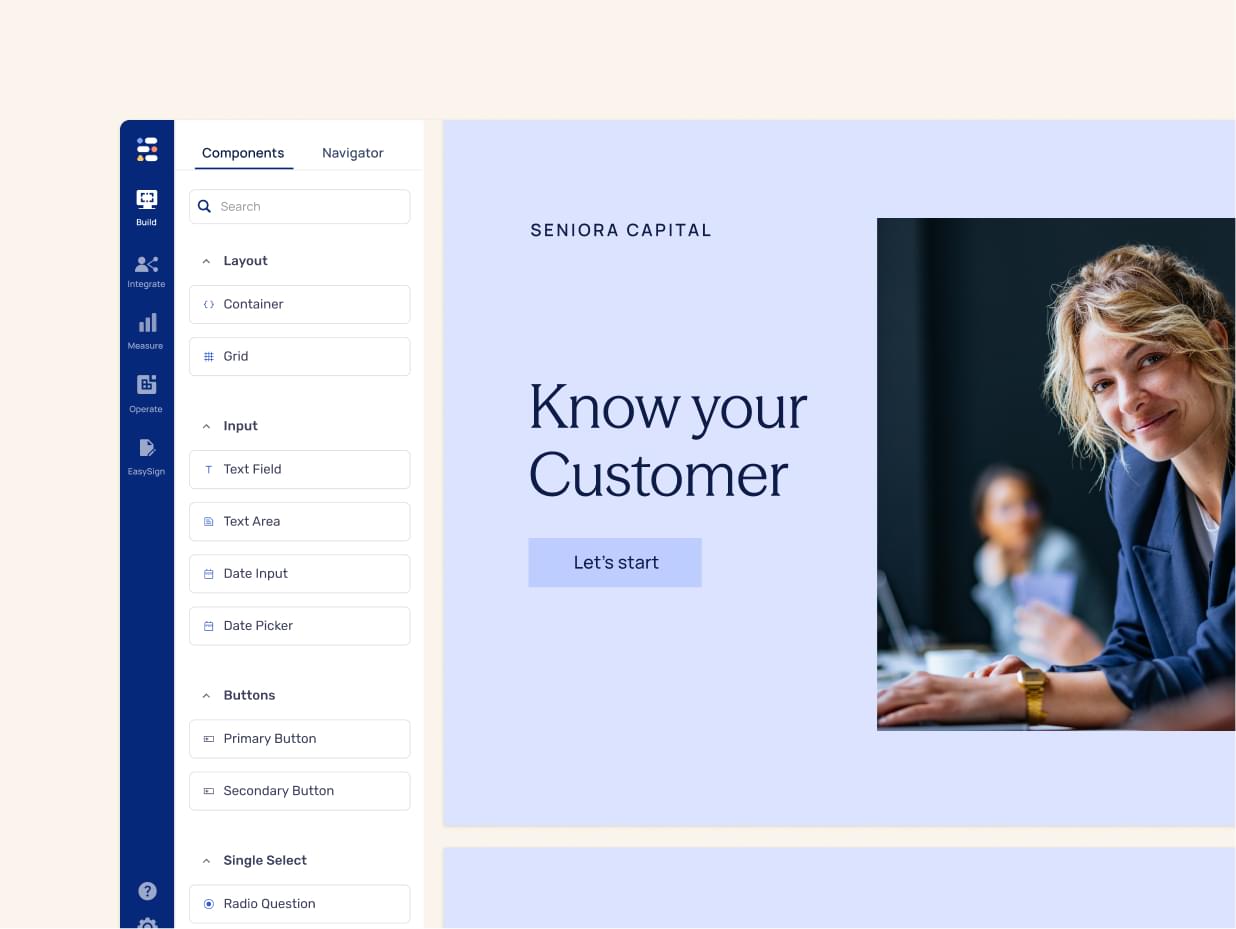
Once you've mapped the process, create a customer-facing Journey in EasySend.
Instead of sending customers static forms, a Journey guides them through the claims process one step at a time.
For example, a digital FNOL Journey can collect:
- Policy information
- Incident details
- Date and location of loss
- Contact information
- Photos and supporting evidence
- Repair estimates
- Banking information
- Customer declarations
Rather than overwhelming customers with every question upfront, the Journey adapts based on their responses, creating a simpler and more personalized experience.
Once you've mapped the process, create a customer-facing Journey in EasySend. Learn how to build and configure a Journey in the EasySend Help Center – Creating your first digital journey.
Step 3: Configure your data model
A successful digital claims process starts with structured data.
EasySend's data model allows insurers to define exactly what information should be collected throughout the Journey.
Instead of relying on free-text fields, every piece of information can be mapped to structured data that supports downstream systems.
For example, insurers can define:
- Claim information
- Policyholder details
- Vehicle or property information
- Beneficiary information
- Third-party details
- Banking information
- Uploaded documents
Using a consistent data model improves data quality while simplifying integrations with claims management systems, policy administration systems, and CRM platforms.
EasySend's data model allows insurers to define structured claim data that can be reused throughout the Journey. Learn more about connecting Journeys to the model in the Model configuration documentation.
Step 4: Add conditional business logic
Insurance claims rarely follow the same path.
A property damage claim requires different information than an auto accident or liability claim.
EasySend allows business users to configure conditional business logic without writing code.
For example:
- Show vehicle information only for auto claims.
- Request medical documents only for injury claims.
- Ask for police reports when required.
- Route high-value claims for manager approval.
- Display additional declarations based on policy type.
Conditional logic keeps the Journey relevant while reducing unnecessary questions and improving completion rates.
Configure validations, conditions, and business rules without code. See the Model and validation documentation.
Step 5: Collect supporting documents securely
Most claims require customers to provide supporting documentation.
Instead of requesting documents through email, allow customers to upload files directly within the Journey.
Common examples include:
- Photos
- Repair estimates
- Medical records
- Police reports
- Receipts
- Proof of ownership
- Invoices
Every uploaded document becomes part of the claim, making it easier for adjusters and reviewers to access the information they need.
Customers can securely upload claim documents as part of the Journey. Learn more in the Document upload documentation.

Step 6: Generate personalized claim documents with Dynamic Documents
Many insurers still maintain dozens—or even hundreds—of document templates for different claim scenarios.
EasySend's Dynamic Documents eliminate this complexity.
Using a single Microsoft Word template, insurers can generate personalized documents based on the information collected during the Journey.
For example:
- Claim summaries
- Settlement agreements
- Customer declarations
- Payment authorization forms
- Internal review documents
Dynamic Documents automatically include or exclude sections based on business rules, ensuring each document matches the specific claim without requiring multiple template versions.
This reduces maintenance while improving consistency and compliance.
Dynamic Documents generate personalized claim forms from a single Microsoft Word template. Learn more in the Dynamic Documents documentation.
Step 7: Capture signatures with EasySign
Many insurance claims require customers to sign declarations, settlement agreements, or payment authorizations.
Rather than sending documents through a separate eSignature platform, EasySign allows customers to review and sign documents without leaving the Journey.
Keeping signatures inside the same workflow helps reduce abandonment and provides a complete audit trail for every transaction.
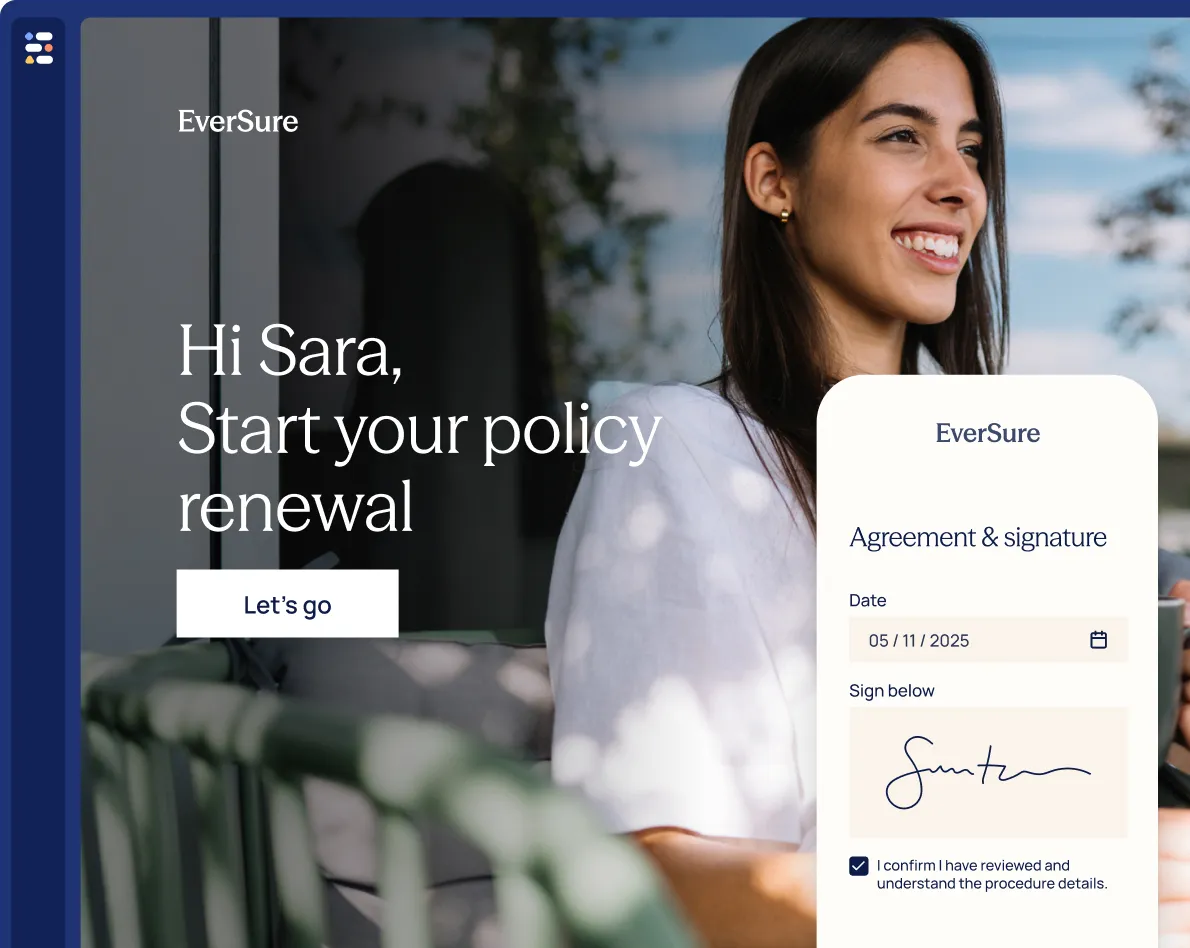
EasySign lets customers review and sign documents without leaving the Journey. Learn more in the EasySign documentation.
Step 8: Automate notifications and follow-ups
One of the biggest causes of claims delays is waiting for customers or internal teams to complete the next step.
EasySend can automatically trigger notifications throughout the Journey.
Examples include:
- Claim submission confirmations
- Missing document reminders
- Signature reminders
- Internal approval notifications
- Status updates
- Requests for additional information
Automated communication keeps claims moving while reducing manual follow-up by customer service teams.
Notifications, roles, and communication channels are configured through the Workflow Manager documentation.
Step 9: Connect the Journey to your core systems
Digitizing claims doesn't require replacing your existing technology stack.
EasySend integrates with existing insurance systems to synchronize data automatically.
Typical integrations include:
- Claims management systems
- Policy administration systems
- CRM platforms
- Document management systems
- Payment systems
- Enterprise applications through APIs and webhooks
Instead of manually re-entering customer information, data collected during the Journey flows directly into the systems your teams already use.
EasySend supports integrations with CRM, policy administration systems, and enterprise applications. Explore the Integrations documentation or the Salesforce integration guide.
Step 10: Measure and optimize performance
Once your claims Journey is live, use analytics to identify opportunities for improvement.
Monitor metrics such as:
- Journey completion rate
- Customer drop-off points
- Average claim submission time
- Missing document requests
- Manual interventions
- Time to settlement
- Customer satisfaction
Analytics help insurers continuously optimize the customer experience while reducing operational effort.
Use EasySend Analytics and monitoring tools to measure conversion, identify bottlenecks, and improve claims performance. Learn more in the Analytics documentation and the Monitoring and support tools guide.
What a digital insurance claims Journey looks like
A customer receives a secure link after reporting a claim.
They complete a guided Journey that asks only the questions relevant to their claim, uploads supporting documents, reviews automatically generated claim documents, and signs required forms using EasySign.
Behind the scenes, EasySend validates the submitted information, applies business rules, routes the claim to the appropriate teams, generates Dynamic Documents, synchronizes data with core systems, and automatically keeps the customer informed throughout the process.
The result is a connected digital experience from FNOL through claim resolution—with fewer manual tasks, faster processing, and a better customer experience.
Why insurers choose EasySend for claims digitization
Unlike solutions that focus on only forms or eSignatures, EasySend provides a complete customer interaction layer for insurance claims.
A typical claims Journey can include:
- Guided digital FNOL experiences
- Configurable data models
- Conditional business logic
- Secure document collection
- Dynamic Documents
- EasySign
- Automated notifications and reminders
- Multi-party workflows
- CRM and core system integrations
- Analytics and audit trails
Because EasySend sits alongside existing claims and policy administration systems, insurers can modernize the customer experience without replacing their core technology.
FAQ

Forget forms. Create digital customer journeys.